|
The Ultimate Article Marketing, Spinning, and Submission Tool - EVER
|
Instructions*** These instructions are current as of version 1.0.8.5 *** These instructions explain all the various components of Article Marketing Robot. Getting Started | Video Library | Forum Table of Contents
The File Menu
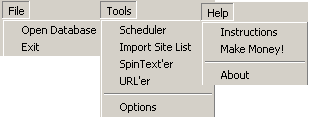
Open Database is handy if you want to run Article Marketing Robot on multiple computers (two computers per unlock code) and store the database on a central server. Exit quits Article Marketing Robot. Scheduler opens the "Scheduler" screen. Import Site List opens the "Import Site List" screen. This allows you to import a list of article diretories that you have compiled. SpinText'er opens the "Spin Text'er" screen. Here, you can create spin syntax of a list of keywords or urls or whatever you want. URL'er opens the "URL'er" screen. Here, you can create a perfect URL, or spin text variations of URLs and anchor texts. Options opens the "Options" screen. Instructions brings you to this exact page you are reading now. Get Unlock Code brings you to the buy section of the Article Marketing Robot website Enter Unlock Code opens the "Enter Unlock Code" screen. Scheduler
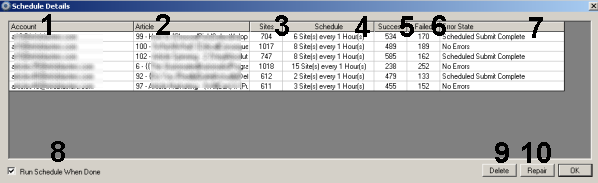
Note about the Scheduler - Your PC has to be on for scheduling to occur. If you turn your PC off, then scheduling will resume where it left off then next time you power on your PC. (See Tools - Options for "Load AMR when Windows Starts:) 1. The Account column is the email address that is associated with your Author Account. 2. The Article column is the article you are submitting. 3. The Sites column is the number of sites you are submitting to. 4. The Schedule column displays how many sites per hour Article Marketing Robot will submit it. 5. The Successful column is how many successful submits have been made so far. 6. The Failed column is how many failed submits have been made so far. 7. The Error State column displays the current situation of the submission. If there is an error, you can hit the Repair button to fix it. 8. Run Schedule When Done will start scheduling when you hit the OK button. 9. The Delete button will delete the highlighted schedule. 10. The Repair button will repair the highlighted schedule if it is an error state (Articles Not Spun, Article is Missing) Buttons Not Show in the Above Graphic: Export - Will create a .csv file of the scheduler grid that you see. Finalize Submission - Will run the selected schedule to completion - In other words, will complete the schedule Now! - Will bring the next submit up to right now for the selecrted schedule. Once it completes the submit, it will return back to its normal scheduled process.
Import Site List
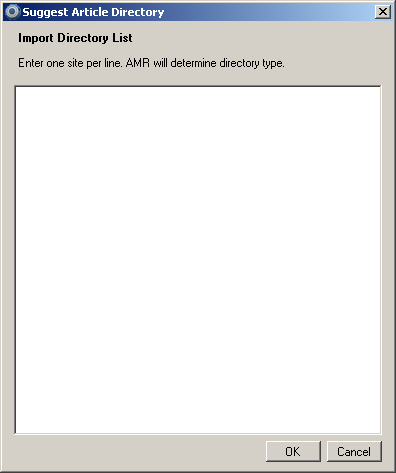
If you find or own several (or one) arrticle directories that aren't in the site list, simply add it here. Just enter one site per line, and hit OK. AMR will detect what site type it is and add it to the list. Note, directories must allow user registration for them to get accepted. The SpinText'er (version 1.0.8.0 +)
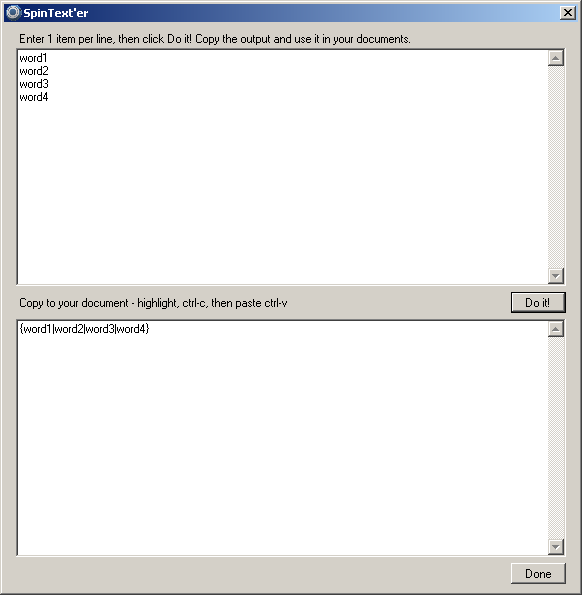
This handy tool is quite simple to use. Simply enter anything you like per line, and click Do it! As you can see in the image above, the 4 words get quickly converted into usable spin text in the output box. Simply highlight the output and right-click it, copy. Then you can paste it where you like. The URL'er (version 1.0.8.0+)
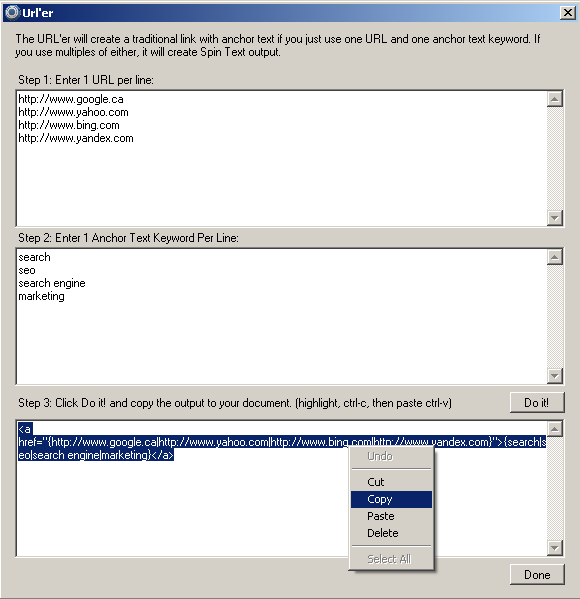
Similar to the SpinText'er, the URL'er allows you to create spin text out of mulitple URLs and multiple anchor texts. As shown in the example about, all you need to do is enter an item, one per line, and hit the Do it! button. Highlight the output, right-click and select copy. Then you can paste the output anywhere in your article. (recommended the resource box) The Quick Dashboard
1. This dropdown box is where your Author Account email address are listed. 2.This dropdown is the list of articles that relate to the selected email address are stored. 3. This is a quick overview of how many directories are available in AMR, and the number of OK's and Published. Step 1 - Create Author Account
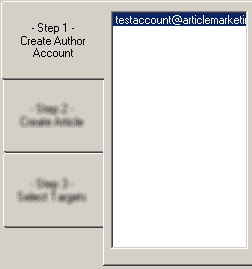
Step 1: This list is reserved for Author Accounts. This image only shows one, but it can contain an unlimited number of Author Accounts.
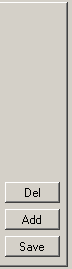
On the right-hand side of Step 1 you will get three buttons. Del, Add, and Save. 1. The Del button deletes the currently highlighted Author Account. 2. The Add button allows you to add an Author Account to the list. 3. The Save button saves your Author Account. Navigating to other parts of the software will prompt you if you want to save your Author Account changes. Step 1-A: Author Account Info
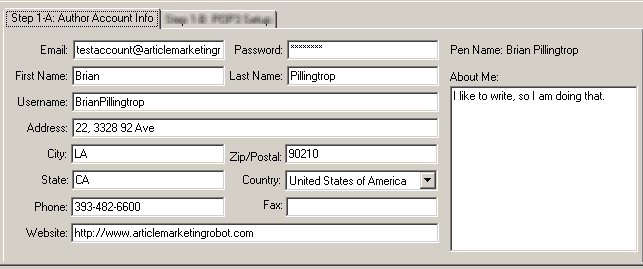
Step 1-A: Author Account Info: When an Author Account is selected in the list, this section of Step 1 will display the details that relate to that Author Account. Author Account Best Practices
Step 1-B: POP3 Setup
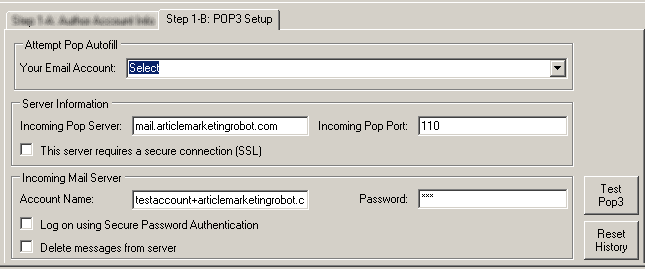
Step 1-B POP3 Setup: This is the POP portion of the Author Account. Here you will set up your incoming email settings so that AMR can check and confirm the emails that are sent during the signup process. Test Pop3 - AMR will attempt to log into your POP account based on the settings you have supplied. Reset History - AMR stores the history of your POP download during the confirmation process so it doesn't re-download emails. If for some reason you want to re-confirm your emails, simply click the Reset History button and AMR will then allow you to re-download all emails stored on your email server. POP3 Best Practices Based on most user demographics, we have included a drop-down that will help autofill your POP3 information based on your account type. For example, if you are using a non-secure cpanel email account hosted on your own domain, you would simply select CPanel Non-Secure in the Autofill Dropdown (Attempt Pop Autofill) AMR will fill in the required details except your password. If you are using email hosting that is not in the drop down, that's ok. All you need to do is a quick Google search to find your POP settings and enter them into the form. Do not use an email that is also being used by an email software such as Outlook or Outlook Express. Most of the time these software's are configured to download and delete the messages from the server. If the software deletes the messages, then AMR has nothing to check, therefore negating the confirmation process. If you are using a Gmail account, you need to ensure that you have allowed pop access in your gmail account settings. Also, you need to ensure that Delete Messages from server is checked as gmail only allows around 200 emails to be downloaded from the server at a time. This means that you will need to hit the confirmation button several times, but the emails need to be deleted for the next batch to be downloaded. Step 2 - Create Article
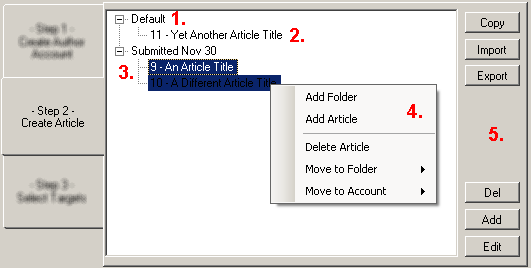
This is the main menu for creating an article. This is not to be confused with the Article Editor.
Step 3 - Select Targets - Overview
This screen is the most complicated out of all the steps. It allows you to refine the targets (article directories) down based on a variety of filtering options. The Target List
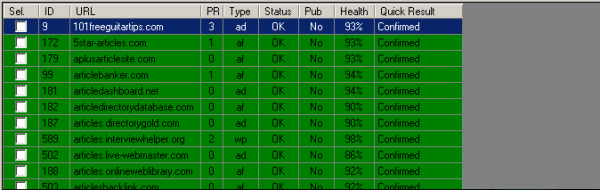
In this image, you will see a variety of columns, explained from left to right:
Filter Settings
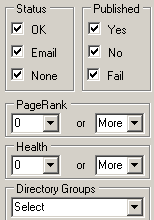
Based on the Target List columns, you can adjust what you want to see to help narrow down where you submit your articles to. The only difference is that Director Groups are not listed in the Target List. Director Groups are assigned in the right-click menu of the Target List. Select Dropdown
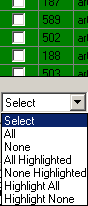
This dropdown box allows you to select (Sel. / Check) various items in the target list.
Search Targets
This box allows you to search for targets based on URL and ID number. The ">" arrow allows you to find the next target based on your current search criteria. Sites / Refresh
Sites allow you to filter out or include sites that you want to see in the target list.
The Refresh button applies all settings for Sites and Filter Settings, redraws the target list. Targets Right Click Menu
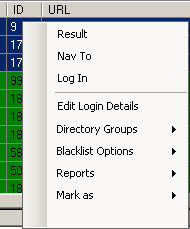
In this screen you have several options, but we will only focus on the first for in this sub-section
You will find the next menu options listed below. Targets Right Click Menu - Directory Groups
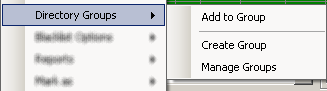
Directory Grouping is handy if you want to include or exclude certain types of categories. For example, if you have found certain sites that only pertain to pets/animals, then maybe you would want to make a group of them so that you only submit your pet related articles to those sites. This option is quite self-explanetory, so at this point, instructions aren't available. Targets Right Click Menu - Blacklist Options
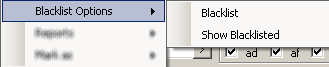
When you highlight one or more directories, you have the option to blacklist them. This is useful if you find the directory to be a culprit unsuccessful, never publishes, or you just have a general disliking for it. By using the Show Blacklisted dialog, you can "unblacklist" sites so they show up in your site list again. This option is quite self-explanetory, so at this point, instructions aren't available. Targets Right Click Menu - Reports
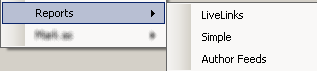
The most sought after feature for any link submission utility is the ability to find the URL's of where their links reside. As an SEO expert, this is important to myself as well, so I introduced the LiveLinks Function. LiveLinks logs into your Author Account and looks for approved articles. If found, it produces a report. More can be found here (forgive the older looking interface - functionality remains intact). The Simple report outputs the exact same data you see in the list, minus a few details. Author Feeds attempts to guess and output the URL's to all the author feeds that you have submitted to. NOTE - you must successfully submit at least one article to each directory you want the author feed to report. Targets Right Click Menu - Mark As
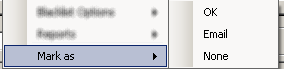
At any time you can mark one or more highlighted article directory as either OK, Email, or None. The reason you might want to mark an Email/OK directory as NONE is to either re-signup to the site, or perhaps a captcha cracking service. Another reason why you may mark as OK is if you inadvertantly confirmed a site email confirmation request. View and Command Buttons |





|
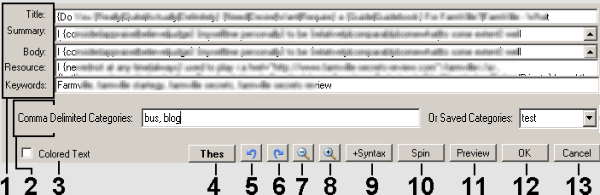
1. The Definition / Context list shows a list of definitions for the word you are trying to find synonyms for. You will also see result from the Local Thesaurus and Related words that aren't quite synonyms, but close. When you click on any of the items in the list, the Word List will be populated with synonyms that are relevant to the definition you selected. 2. This spot is for adding your own word. 3. The Add button adds the word. 4. The Word List is the list of words that are related to the selected Definition / Context. You can Double-Click or click the Use button to add it to your spin syntax. 5. The LookUp button will find synonyms for the selected word in the Word List. 6. The Use button will add the selected word to the spin syntax in the article. * NOTE * Using or adding a word will be added to the Groups / Previously Used section. 7. The Groups / Previously Used list is a list of previously spin syntax words that you have used. This is handy when you have severaly synonyms that are closely related by definition. 8. The E button stands for Edit. This opens the "Synonym Group Editor" screen. |
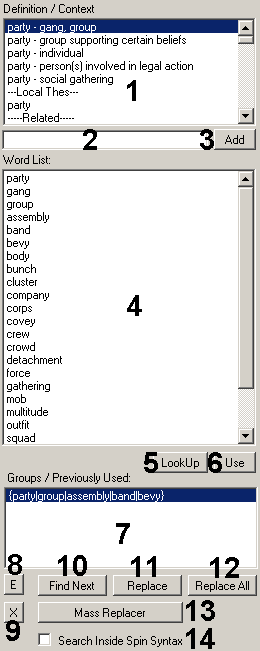
9. The X button will delete the highlighted word group.
10. The Find Next button works with both the Mass Replacer and the Thes button. When using the Thes button, it will find the next word in the article that you just looked up. When using the Mass Replacer, it will find the next word that has a Synonym Group associated with it.
11. The Replace button will replace the word in the article with the highlighted Synonym Group.
12. The Replace All button will replace the all words in the article with the highlighted Synonym Group.
13. The Mass Replace button will begin Mass Replacing. Article Marketing Robot will search the entire article for words that have a Synonym Group associated with them, then stop and wait for you to either Replace, Replace All, or Find Next. Note that the button will change to Stop Mass Replacer, to end the process.
14. When using the Find Next button, you can Search Inside Spin Syntax to potentially replace words with Synonym Groups.
Edit Synonym Groups
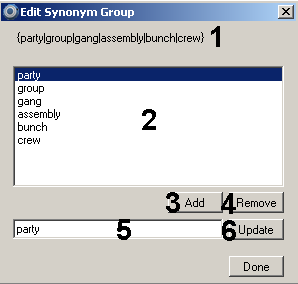
1. This section shows what the current Synonym Group will look like.
2. This list is all the words that are in the Synonym Group.
3. The Add button allows you to add a word to the Synonym Group. It will blank out the text box (point 5).
4. The Remove button will remove the highlighted word from the Synonym Group.
5. The textbox allos you to either add a word or edit an existing highlighted one.
6. The Update button will update the word in the Synonym Group list.
LiveLinks - Approved Article URL Extraction
Instructions on how to extract approved article URL's
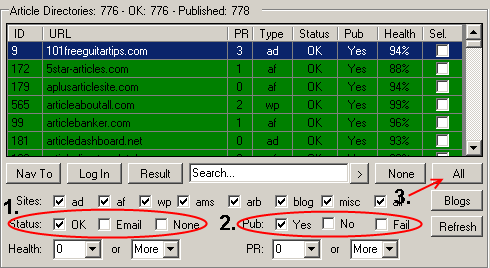
Ensure that your filtering looks like points 1 and 2, then hit the refresh button.
Once the Article Directory list refreshes, click the ALL button so that all sites get checked off.
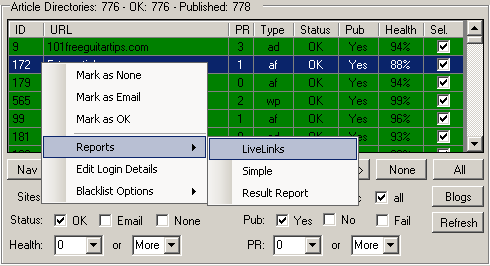
Right-click into the Article Directory list to reveal the options as shown above.
Mouse over Reports, then click LiveLinks.
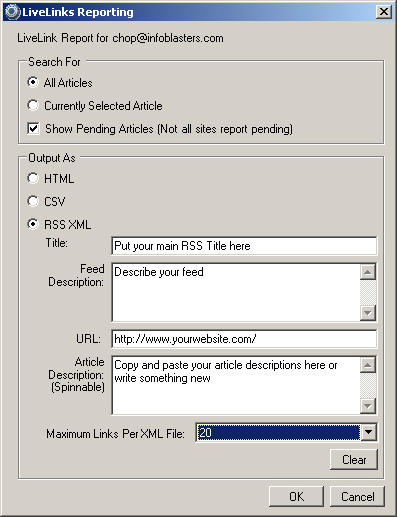
There are several options available here. You can either export the report as HTML, CSV or RSS XML for aggregation.
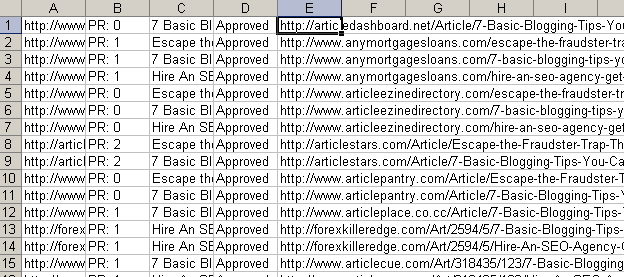
This is an example of the CSV output.
Options
|
Thesaurus - Contextual: When using the Article Editor, this will get and sort synonyms by definition. Article Marketing Robot must go out to the internet to get these results, so the thesaurus will run slower. Thesaurus - Local File: This will load synonym results from a file that is stored on your computer when you installed Article Marketing Robot. Captcha Cracking allows you to use the Decaptcher or Death By Captcha service. If left unchecked, you will need to enter your captchas manually. The Test button will attempt to retrieve your balance from the selected service. Convert UTF-8 to Ascii is left checked, but if you are using foreign language with accented characters, uncheck it. Threading refers to how many concurrent processes are executed at the same time. The faster your internet connection, the more threads you can run, resulting in faster completion of a given process. |
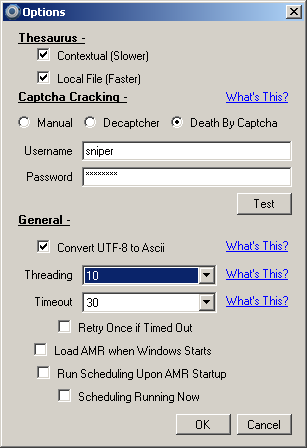
Timeout is the amount of time AMR will wait for a site to load in a given process. If it times out once, the AMR will retry if Retry Once if Timed Out is checked.
Load AMR when Windows Starts will load the software when you start your computer. This is handy if you are running Scheduled Submits.
Run Scheduling Upon Startup: When AMR loads, it will start the Scheduled Submits immediately.
Scheduling Running Now: This will be checked by default if AMR loads with Scheduling Upon Startup. If you don't have Scheduling Upon Startup checked, then you can check this off to run the Scheduled Submits.
© 2012 Article Marketing Robot | Privacy Policy | Terms and Conditions | Article Marketing
|